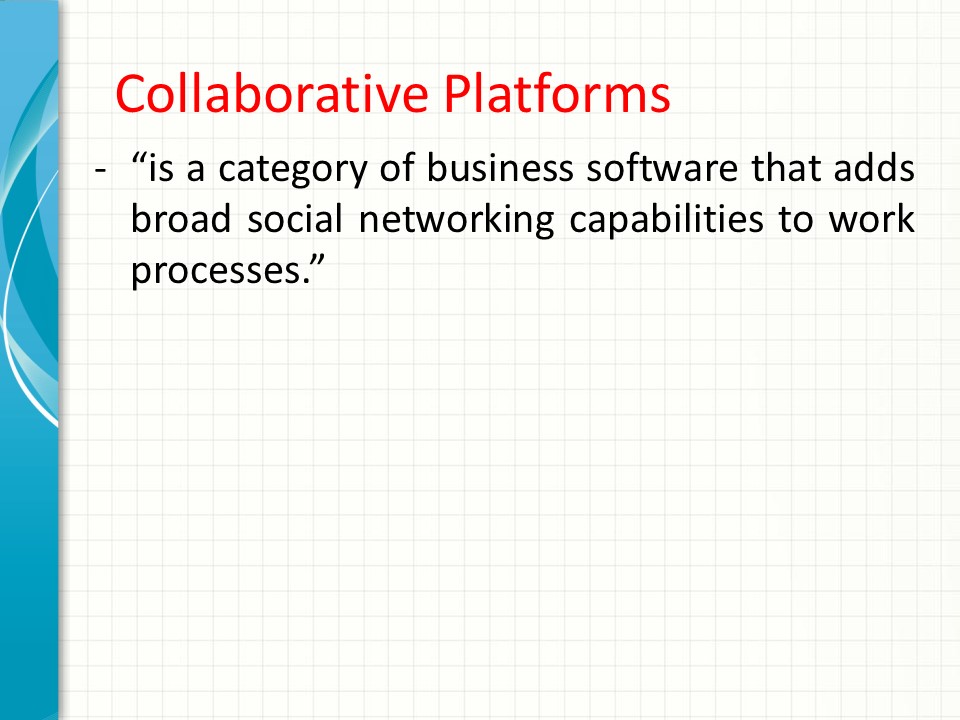
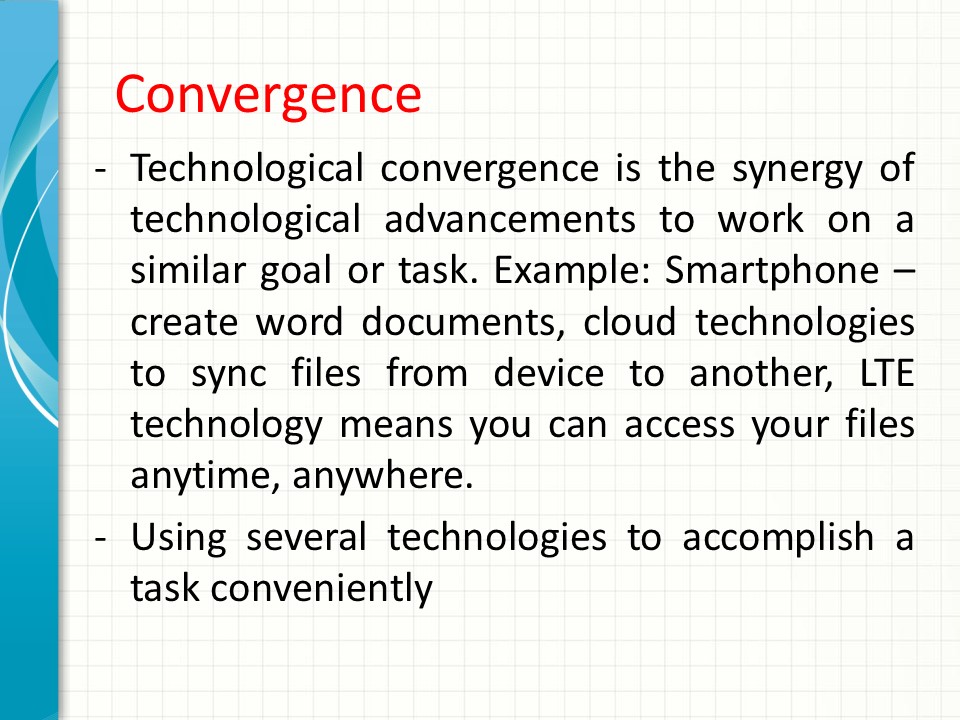
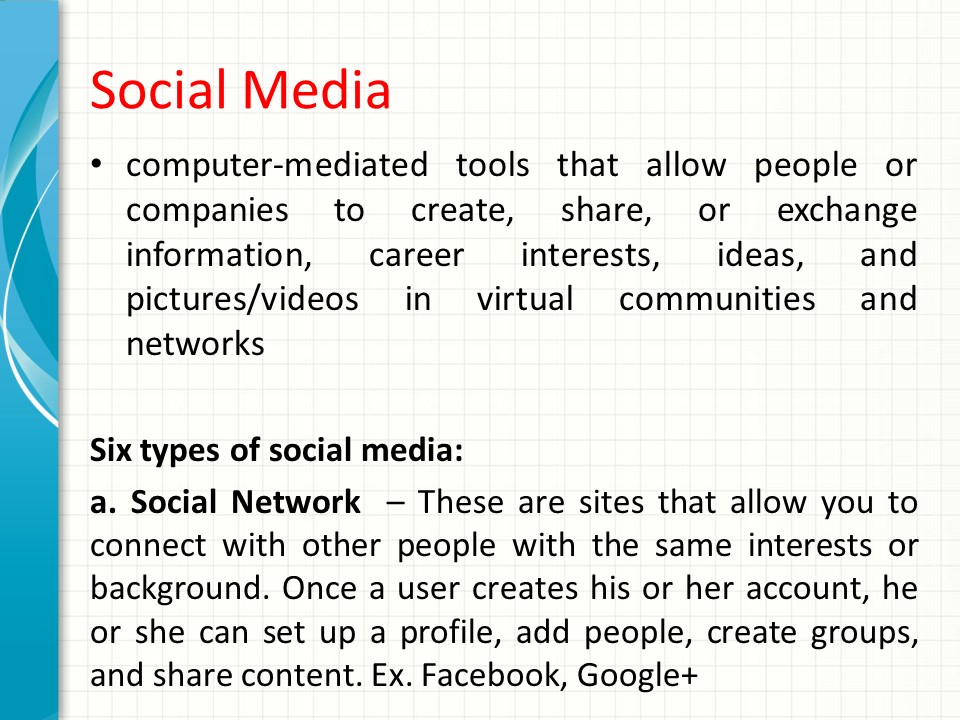
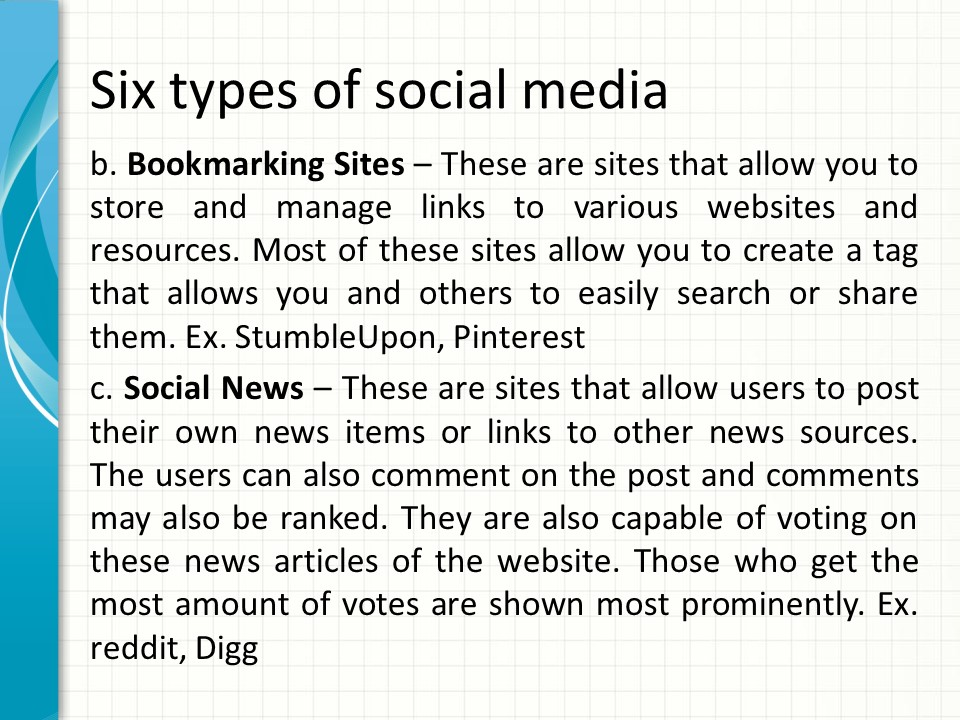
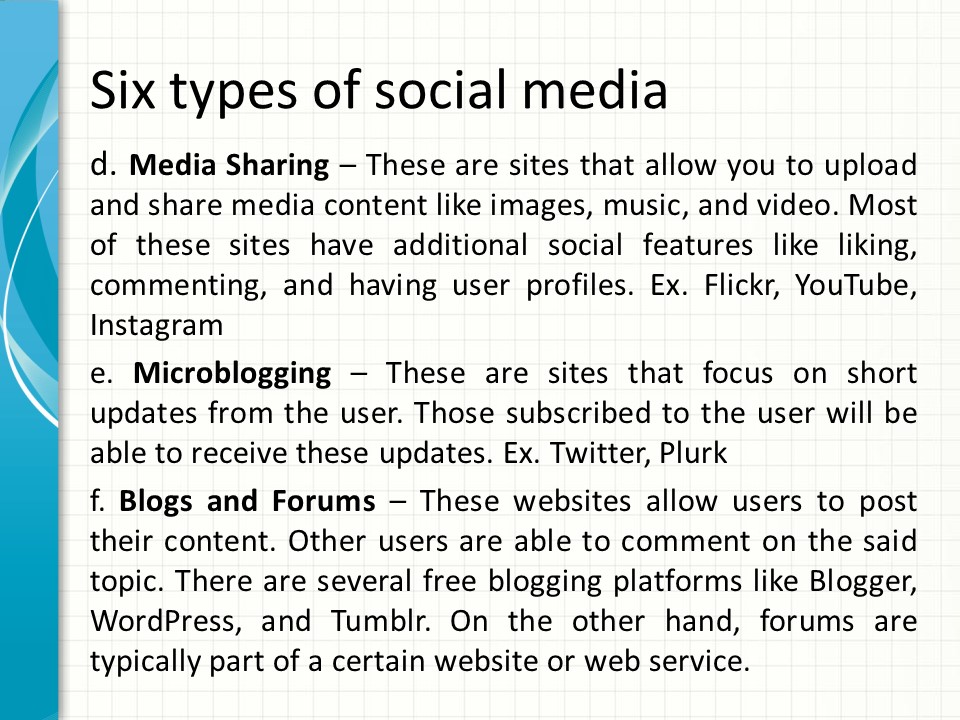
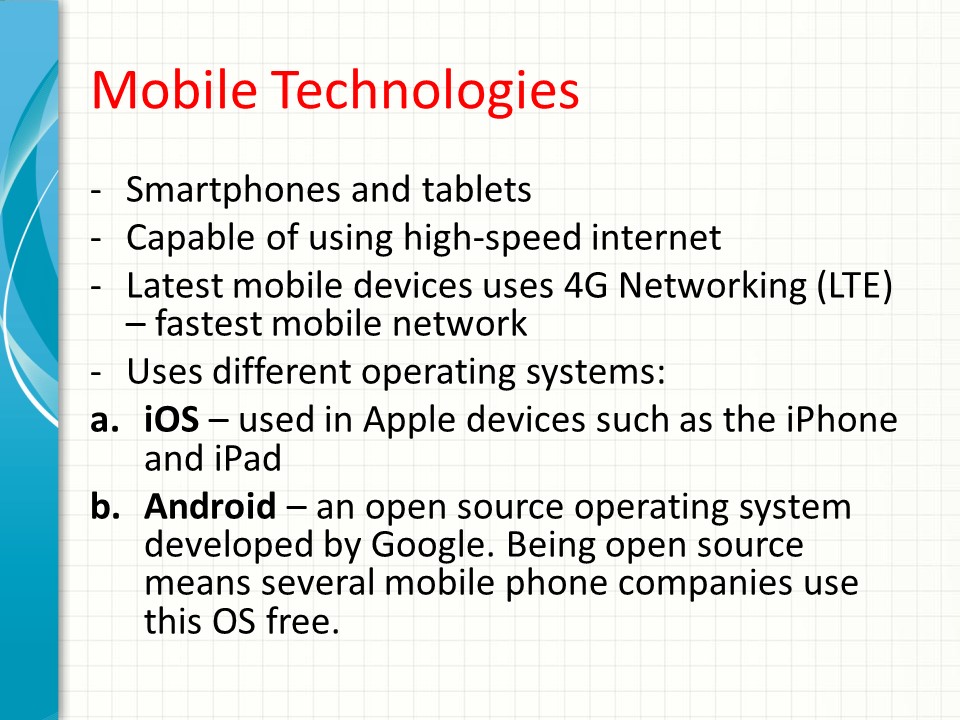
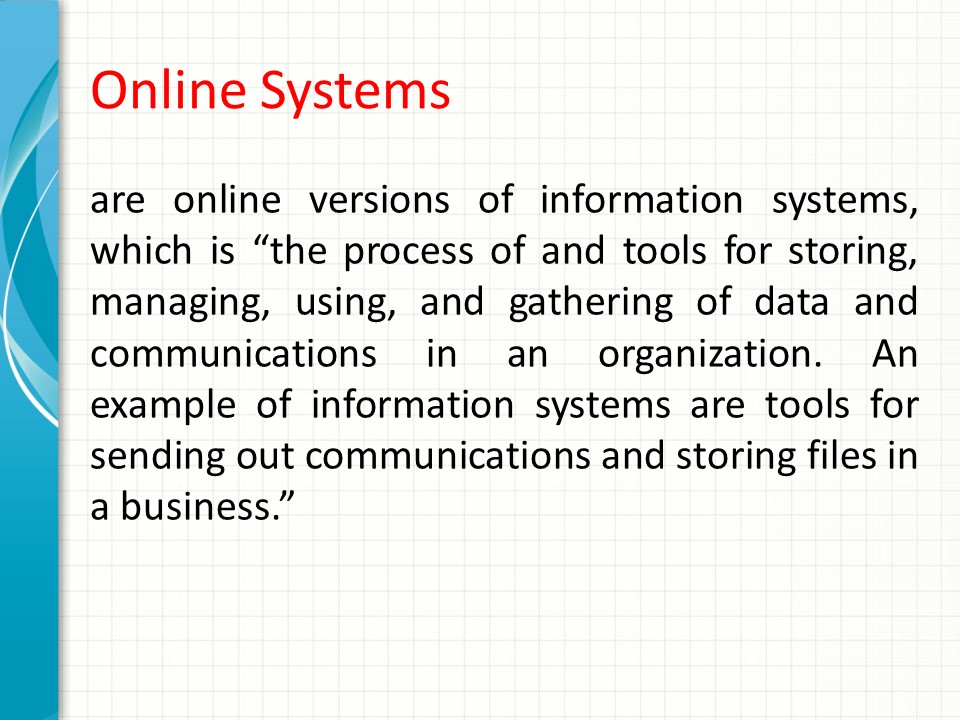
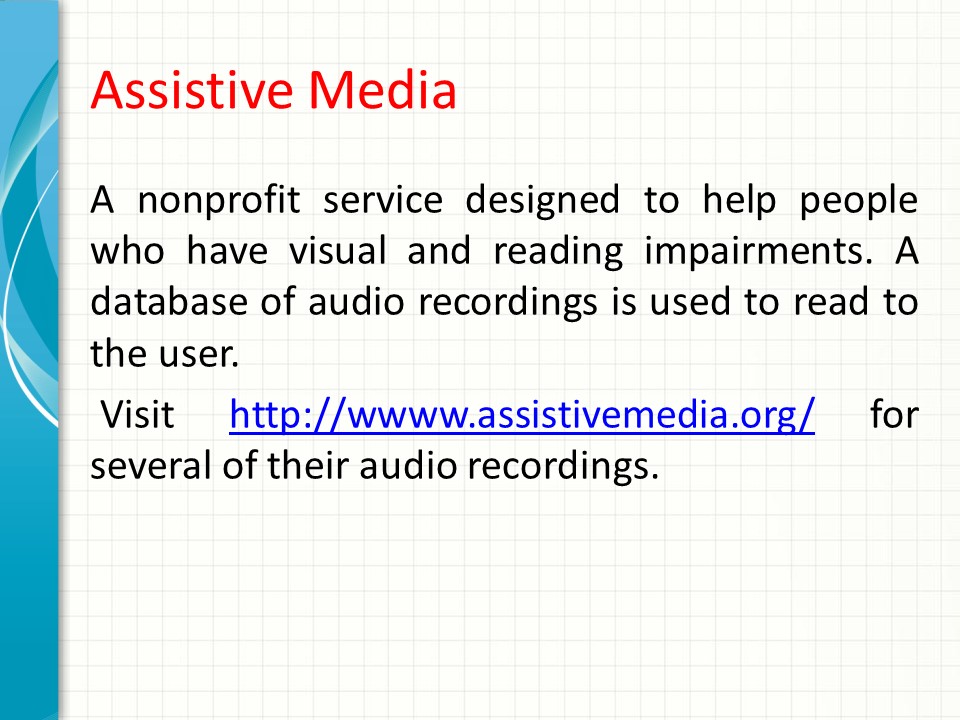
Hello! Below is the copy of our lesson on Trends in ICT. One of the trends in ICT is the Social Media. Know the six types of Social Media and look for websites referring to each type. Copy the link of each website and identify each link according to its type. Then describe their similarities and differences. You may use Google Docs to write your answers or directly post your answers in the Comment Section below.
Trends in ICT: Types of Social Media


Published


https://sites.google.com/view/group7-planning/home
LikeLike
https://sites.google.com/s/1uu3bCNniEVTNXKGoO8UJpOjKM7bKWdiC/p/1ienpL8fUnUKdOCSY5PV24ZCZM91Ofbbv/edit 11 LEF-B DUMILON’S GRUOP
LikeLike
https://sites.google.com/view/kawaiiplanning/home
LikeLike
https://sites.google.com/view/g9abmleading/home
LikeLike
https://sites.google.com/view/group1abmplanning/home
LikeLike
https://sites.google.com/view/group3-planning/home
LikeLike
https://sites.google.com/s/1FyBE5EXjP1aizN-l0rMcP8ibtLyOFBbi/p/1fclZZYdZ5rOvcwf_U8ek0NWKB6nQJNLK/edit
LikeLike
https://sites.google.com/s/1FyBE5EXjP1aizN-l0rMcP8ibtLyOFBbi/p/1fclZZYdZ5rOvcwf_U8ek0NWKB6nQJNLK/edit
11LEF – B
LikeLike
https://sites.google.com/view/g9abmleading/home
LikeLike
https://sites.google.com/view/group-2-abm-leading/home
LikeLike
https://sites.google.com/view/group-2-abm-leading/home
LikeLike
https://sites.google.com/view/group11planning/home
LikeLike
https://sites.google.com/view/hwalyeohanplanning/activity-3
LikeLike
https://sites.google.com/view/group4-planning/home
LikeLike
https://sites.google.com/view/group-2-abm-leading/home
LikeLike
https://sites.google.com/view/g9abmleading/home
LikeLike
https://sites.google.com/view/group-4-abm-leading/home
LikeLike
https://sites.google.com/view/group10abmleading/home
LikeLike
https://sites.google.com/view/group3leading/home
LikeLike
https://sites.google.com/view/group11organizing/home
LikeLike
https://sites.google.com/view/macalla-badidles-credo11lefb/home
LikeLike
https://sites.google.com/view/almadengargantillapartoplimaco/home
LikeLike
https://sites.google.com/view/group5-planning/home
LikeLike
https://sites.google.com/s/1yyfZfIba8FrKi5roCKk3P-n4VrdukYK7/p/1hpBBKb7Rr3fvp4hVn8k-DRceDqA6gifI/edit
LikeLike
https://sites.google.com/view/group-3-organizing/home
LikeLike
I have a problem viewing your Google Docs and Google Slides. Please fix the error by doing the following:
1. Open the file in your google docs.
2. Click the “SHARE” button located on the upper right corner.
3. Select “Advanced” located on the lower right.
4. Under “Who has access” change the Private to On-Anyone with the link.
5. Go back to your google sites.
6. Don’t forget to publish then copy the link.
7. Paste the link as your reply to this comment.
Note: The same steps also when you use the google slide so that I can view them.
Thank you.
LikeLike
I have a problem viewing your google Docs. Please fix the error by doing the following:
1. Open the file in your google docs.
2. Click the “SHARE” button located on the upper right corner.
3. Select “Advanced” located on the lower right.
4. Under “Who has access” change the Private to On-Anyone with the link.
5. Go back to your google sites.
6. Don’t forget to publish then copy the link.
7. Paste the link as your reply to this comment.
Note: The same steps also when you use the google slide so that I can view them.
Thank you.
LikeLike
I have a problem viewing your google Docs. Please fix the error by doing the following:
1. Open the file in your google docs.
2. Click the “SHARE” button located on the upper right corner.
3. Select “Advanced” located on the lower right.
4. Under “Who has access” change the Private to On-Anyone with the link.
5. Go back to your google sites.
6. Don’t forget to publish then copy the link.
7. Paste the link as your reply to this comment.
Note: The same steps also when you use the google slide so that I can view them.
Thank you.
LikeLike
I have a problem viewing your google Docs. Please fix the error by doing the following:
1. Open the file in your google docs.
2. Click the “SHARE” button located on the upper right corner.
3. Select “Advanced” located on the lower right.
4. Under “Who has access” change the Private to On-Anyone with the link.
5. Go back to your google sites.
6. Don’t forget to publish then copy the link.
7. Paste the link as your reply to this comment.
Note: The same steps also when you use the google slide so that I can view them.
Thank you.
LikeLike
I have a problem viewing your google Docs. Please fix the error by doing the following:
1. Open the file in your google docs.
2. Click the “SHARE” button located on the upper right corner.
3. Select “Advanced” located on the lower right.
4. Under “Who has access” change the Private to On-Anyone with the link.
5. Go back to your google sites.
6. Don’t forget to publish then copy the link.
7. Paste the link as your reply to this comment.
Note: The same steps also when you use the google slide so that I can view them.
Thank you.
LikeLike
I have a problem viewing your google Docs. Please fix the error by doing the following:
1. Open the file in your google docs.
2. Click the “SHARE” button located on the upper right corner.
3. Select “Advanced” located on the lower right.
4. Under “Who has access” change the Private to On-Anyone with the link.
5. Go back to your google sites.
6. Don’t forget to publish then copy the link.
7. Paste the link as your reply to this comment.
Note: The same steps also when you use the google slide so that I can view them.
Thank you.
LikeLike
I have a problem viewing your google Docs. Please fix the error by doing the following:
1. Open the file in your google docs.
2. Click the “SHARE” button located on the upper right corner.
3. Select “Advanced” located on the lower right.
4. Under “Who has access” change the Private to On-Anyone with the link.
5. Go back to your google sites.
6. Don’t forget to publish then copy the link.
7. Paste the link as your reply to this comment.
Note: The same steps also when you use the google slide so that I can view them.
Thank you.
LikeLike
I have a problem viewing your google Docs. Please fix the error by doing the following:
1. Open the file in your google docs.
2. Click the “SHARE” button located on the upper right corner.
3. Select “Advanced” located on the lower right.
4. Under “Who has access” change the Private to On-Anyone with the link.
5. Go back to your google sites.
6. Don’t forget to publish then copy the link.
7. Paste the link as your reply to this comment.
Note: The same steps also when you use the google slide so that I can view them.
Thank you.
LikeLike